
Getting Started
Getting Started With Hextom Email Collection Bar
Welcome to Email Collection Bar!
Email Collection Bar captures emails from your website visitors and converts them into subscribers, with the option to reward them with a coupon code and auto-sync contacts with providers like Mailchimp and Klaviyo.
Creating your first email collection bar
1. Enable the App Extension (Recommended)
We recommend enabling the Email Collection Bar app extension in your Shopify theme settings. It helps the bar load faster and is essential for the app’s features to work. You can enable it by clicking this button in the app dashboard:
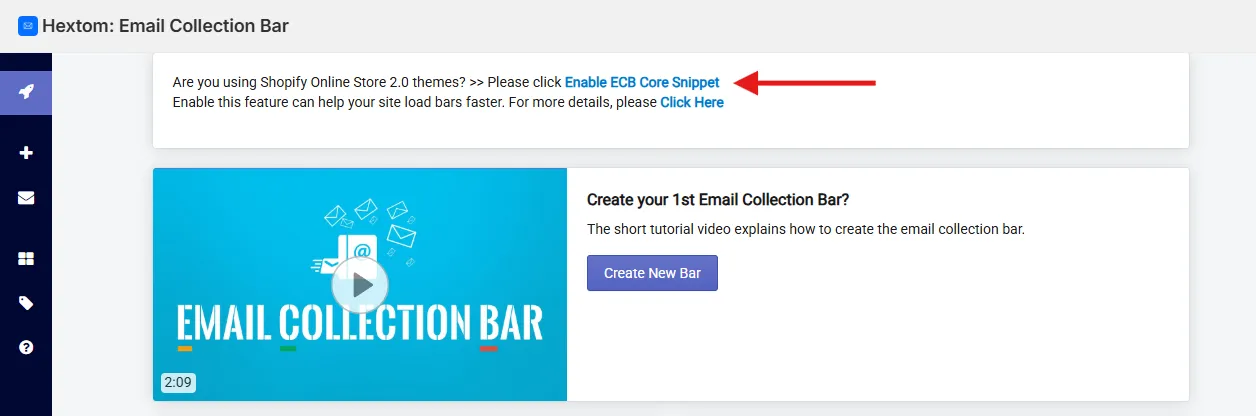
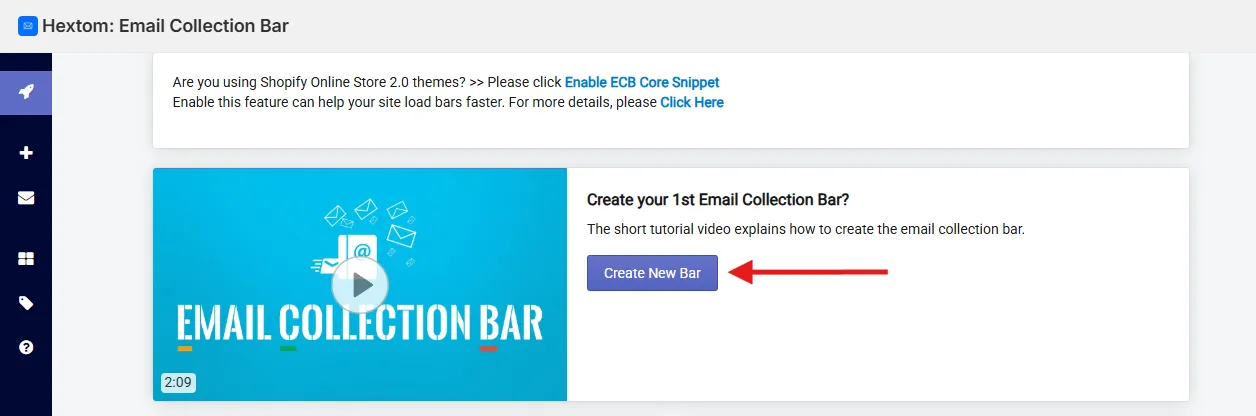
2. Click the Create New Bar button
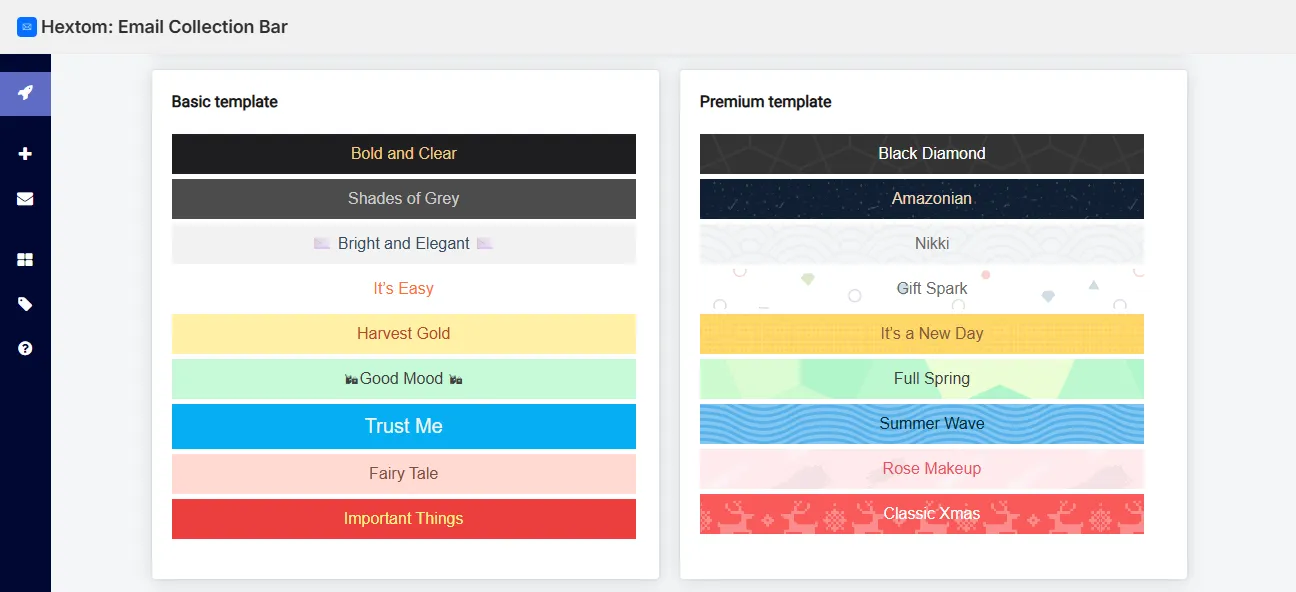
3. Pick a template
Choose a design that fits your store’s look — you’ll see a live preview as soon as you select one.
4. Configure your bar
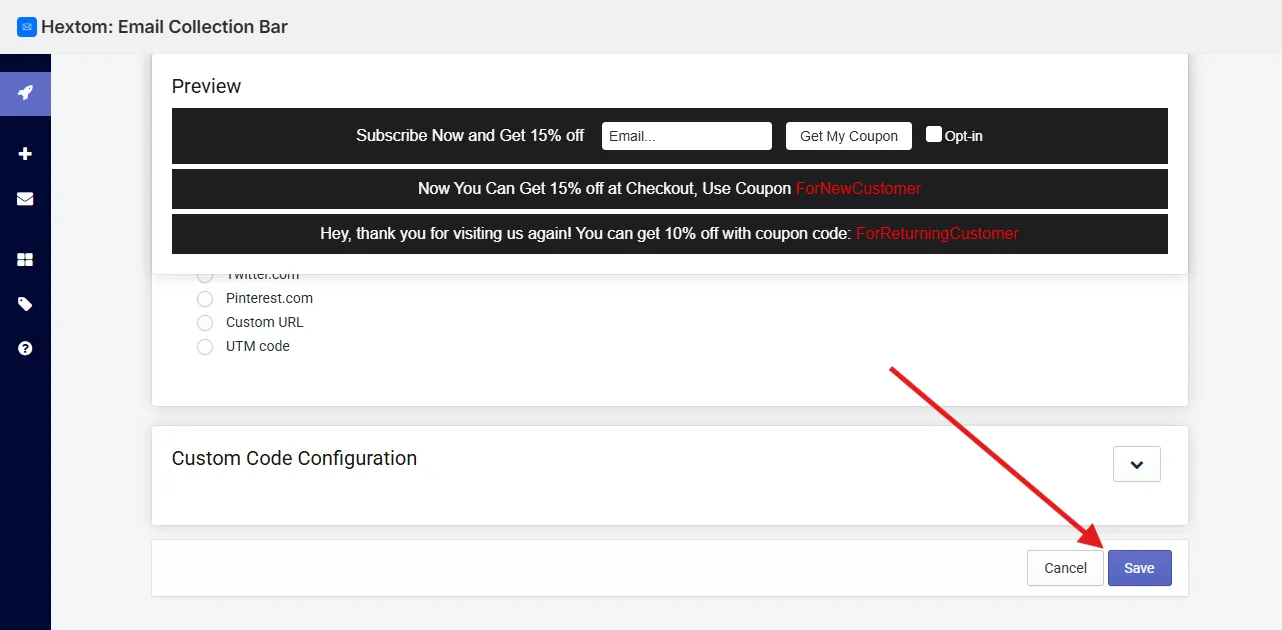
There are many configuration options offered in the app, but the core of your bar is a 3-message flow:
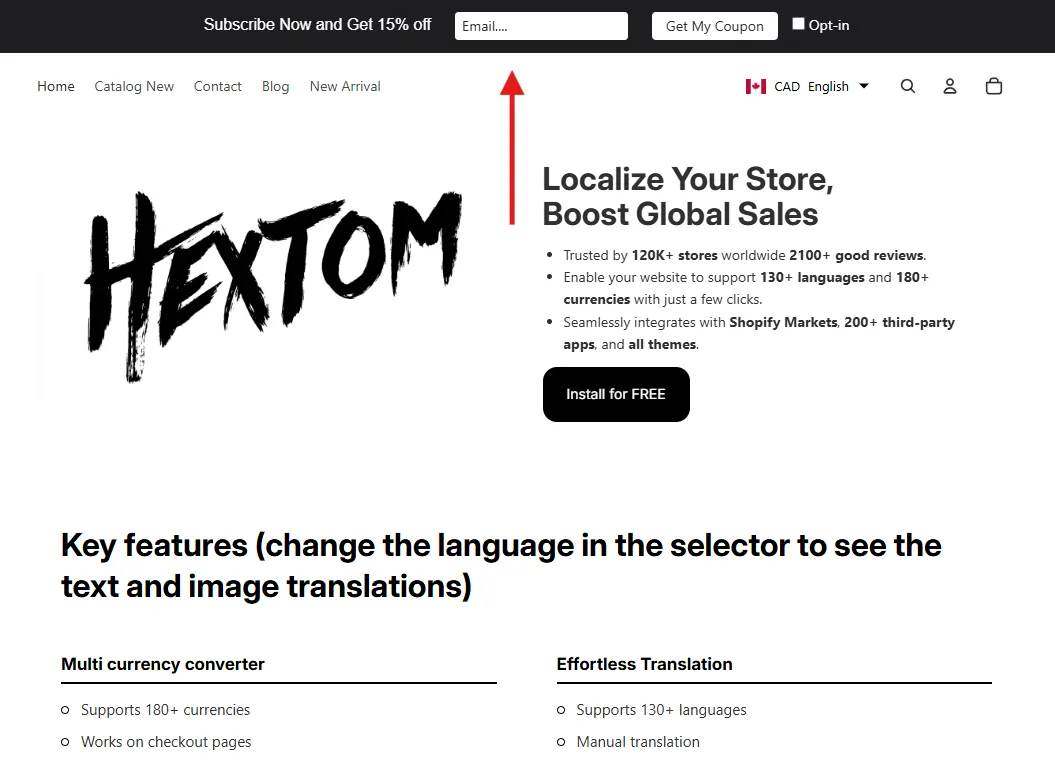
- 1st Message Text: The welcome message that invites visitors to subscribe (e.g., “Subscribe Now and Get 15% off”), along with the Button Text shown on the subscribe button. You can also turn on Add opt-in checkout to add a separate checkbox next to the email field, so visitors explicitly consent to receive marketing emails before subscribing.
- 2nd Message Text: Shown right after a visitor submits their email. Use 2nd Message Coupon Type to decide how new subscribers are rewarded:
- Unique coupon code for every new subscriber
- Fix coupon code for all subscribers — enter the code in Coupon Code for New Subscriber
- Not provide coupon to any subscribers
- 3rd Message Text: An optional greeting for returning customers who’ve already subscribed before — turn it on with Display 3rd (greeting) message to returning customers. Just like the 2nd message, choose a 3rd Message Coupon Type and set a Coupon Code for Returning Subscriber if you want to reward them differently.
5. Save your bar
There are many other settings you can configure, but for now, you can click Save.
Visit your store and you’ll see the bar at the top of the page — just like that!
Making changes to your bar
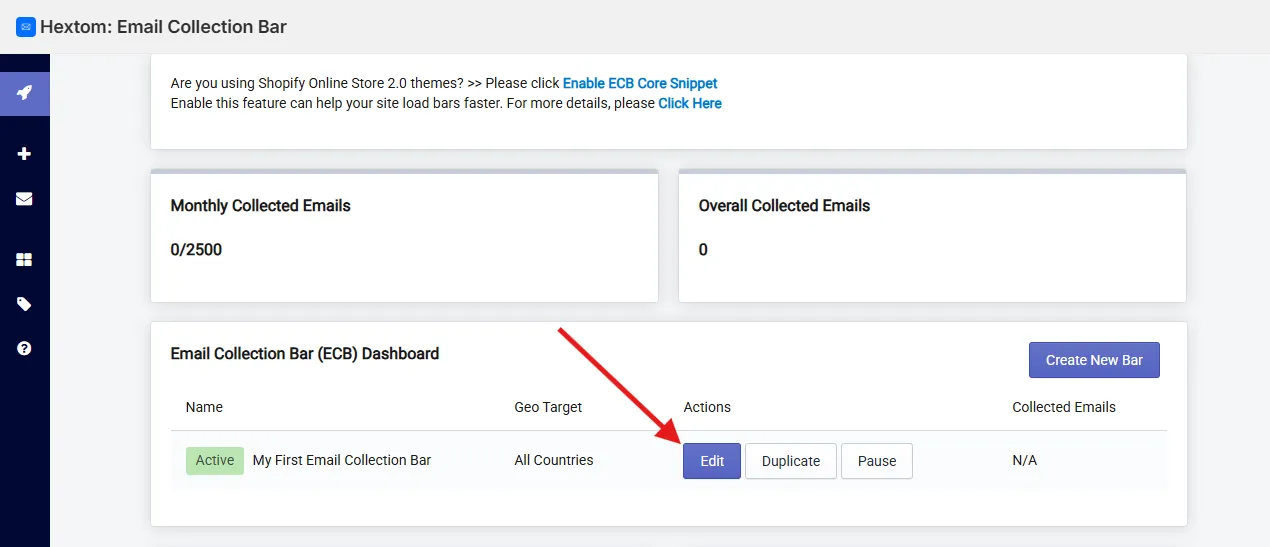
Want to tweak something? No problem. Head back to the app dashboard and click the Edit button on the bar you’d like to update. Make your changes, save, and refresh your store — updates will appear right away.
If you have any further questions, please feel free to email us at help@hextom.com.